Terminal/Command Line Fish Tricks
by
Scoroncocolo
Recently I wrote about how and why the Command Line shell Fish is so much easier and more fun to work with than either the zsh or Bash shell
On this page I want to talk about some fun and useful tricks that will work in the Fish Shell and some but not all will work in zsh and Bash as well
"We’re here on Earth to fart around... we’re dancing animals" - Kurt Vonnegut
The Terminal in a Mac is not a scary place at all in fact it is a fun place to fart around in
So follow me like a panther and lets go fart around in the Fish Shell on your Terminal
While all of these Fish Tricks will work in the Fish Shell some but not all will work in other shells as well
Force Terminal to Send Files to Trash
The Terminal/Command Line loves to permanently delete things and the only delete trick it knows is to destroy things with the rm (remove) command and it doesn't have a command to move things to your Trash folder where they're not yet forever annihilated but we can trick it into doing just that
One of the neatest Terminal tricks is using the mv (move) command to move files to your Trash folder as in mv something.png ~/.Trash but if you try to do that you will get a "Permission denied" or "Operation not permitted" output from the Terminal so here's how to get around that
On a Mac your Trash Folder lives at /Users/YourName/.Trash which can be abbreviated to ~/.Trash but it is a dot file (or dot folder) and Mac hides all files and folders whose names begin with dots (.) so if you cd to your Home directory where it lives and run ls or ls -l you won't find it but if you run ls -la you will find it because the a flag in that command instructs the Terminal to show all files even the hidden dot files
If go there and try to do anything with the .Trash Directory like view its contents using the ls -la command the Terminal will probably output: Permission denied or Operation not permitted
In order to resolve this you must grant Full Disk Access to your Terminal to interact with this particular dot file in your macOS system settings
To do that go to System Settings and under Privacy & Security find and click on Full Disk Access now find Terminal in the list and toggle it to on then a prompt will appear stating you need to Quit and re-open your Terminal so click Quit & Reopen and now Bam! you will have access to your Trash folder in the Terminal
So now you can go to your .Trash Folder at /Users/YourName/.Trash or better yet type ~/.Trash into the command line and you will see /Users/YourName/.Trash in your prompt so type ls -la to view its contents or run echo $PATH to have the Terminal print out its full, complete and very long path
Now you can go to the the Directory/Folder containing the file to be moved to the Trash and type mv FileToBeMoved.txt ~/.Trash and hit Enter and Bam!
You're probably thinking "Well that's a lot of trouble" and you're right it is a lot of trouble so here comes the Fish Trick part
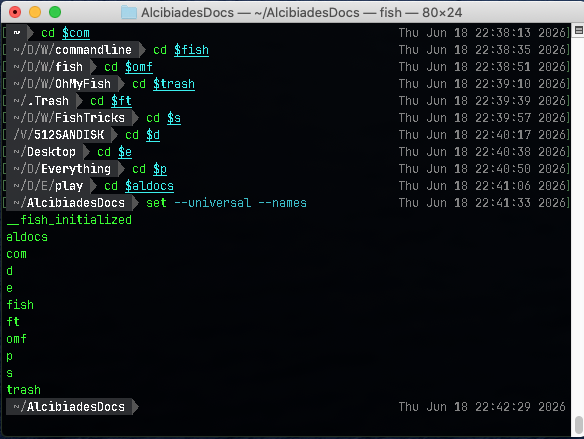
What if we had an easy to type variable to to stand for the path to our Trash folder
Creating variables in the Fish shell
In the Fish Shell there are two excellent ways to make shortcuts to directories:
One way is to use a variable: Just type set -Ux docs /Users/yourname/Documents and hit your Enter key and it's done
To use it type $docs then the Enter key and the Terminal will jump to your Documents Directory
Another way is to use a function: Type function docs then hit your Enter key and then type cd /Users/yourname/Documents and hit Enter again and finally type end and hit Enter
The terminal prompt should now be blinking as normal but you have one more hoop to jump through to setup this function so type funcsave docs and hit Enter and your'e done
The terminal should output: funcsave: wrote /Users/yourname/.config/fish/functions/s.fish which indicates the function was properly set up
Now to jump to your Documents folder you no longer have to use the dollar sign typing $docs you only have to type docs and Bam! Your'e there
So do you need both? I'd say yes and here's why: Using the function shortcut docs is easier than constantly typing $docs and it works great for moving between directories and such but it won't work in a command to copy, move of delete a file
For instance if you ran this mv myfile.txt docs instead of moving the file to your Documents folder as expected, Terminal would simple rename it from myfile.txt to docs because the terminal doesn't recognize the final argument of the command to mean a location
But if you use the variable $docs instead of the function docs as in mv myfile.txt $docs the file will be moved to your Documents folder because the terminal recognizes $docs as a directory
More About Variables
To see a list off all of the variables in your fish shell run set --universal --names and yes there needs to be two dashes before both universal and names
To see a list of the functions you have created you will need to view them in either the Nano or Vim editor by typing this vim ~/.config/fish/functions/ or nano ~/.config/fish/functions/
If you have created some variables whose names you would like to change that's easy to do
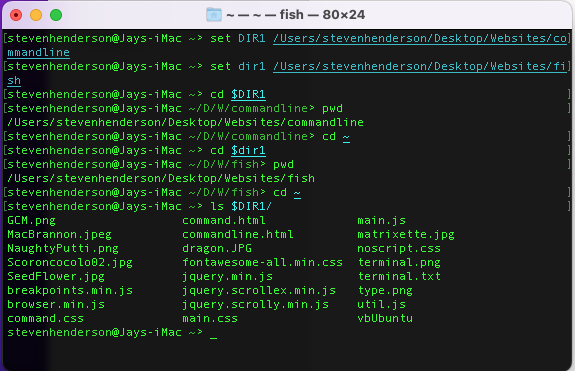
Let's say you have named your variables $dir1, $dir2, $dir3 and so on and you have to keep referring to your notes to remember which shortcut leads to which Directory and you want to change $dir1 to $desktop
Here's how to do that: type set -g desktop $dir1 (the g flag stands for global variable) and then immediately after you've done that run this to erase the old variable from fish.config completely set -e dir1 (the e flag stands for Erase)
To quickly check that the change was made type this echo $desktop and you should see the path to your Desktop
Access Your Thumb Drive
Type cd /Volumes and press Enter to navigate to the drives directory
Type ls and press Enter to see a list of connected drives and you should see Macintosh HD which is your hard drive of course along with your Time Machines both local and external along with whatever thumb drives you have plugged into your Mac
You can access your thumb drive by typing cd "YourDriveName" (replace YourDriveName with the exact name of your drive
To make a Variable shortcut to your thumb drive hold your ⌥ opt/alt key while r-clicking your thumb drive's icon on your Mac Desktop and click on Copy (yourDrice) as Pathname then paste that as the path/of/thumbdrive when using the Terminal command set -Ux thumb path/of/thumbdrive
If you are already working inside a folder and want to copy its exact path: pwd | pbcopy
If you are looking at a file in your current folder and want its full, absolute path copied: realpath filename.ext | pbcopy
If you want to check what is currently on your clipboard without leaving Terminal, type: pbpaste
To see the contents of your Trash folder ls -la ~/.Trash
To delete everything inside your Trash folder rm -rf ~/.Trash/*
To find a file run find ~ -name "your-file-name.jpg" and your Terminal will show you the the full path of ever instance of that file on your machine
pbpaste > filename.txt Replace filename.txt with your desired file name. This command grabs whatever text is currently in your clipboard and writes it directly into the file. If the file doesn't exist, it will be created automatically. If you want to add what is on your clipboard to the end of an existing file without overwriting its current contents, use >> instead of > pbpaste >> filename.txt
To easily verify that your text was saved correctly, you can output the file's contents back into your terminal by typing cat filename.txt
More Fish Tricks
You can type open . to open the current Directory in a Finder window
Typing cal into your terminal prints a clean, text-based calendar for the current month
Instead of typing out long file paths, type cd (with a space) and then drag a folder from your Finder window directly into the Terminal window. Press Enter to go straight to that folder in your Terminal
You can use the command pwd | pbcopy to copy the complete path of the current Directory onto your clipboard
Terminal Commands Mentioned on these Pages
- prevd (Alt+left arrow): takes you to the previous directory
- nextd (Alt+right arrow): takes you to the next directory
- dirh (Alt+d): shows a list of the recently visited directories
- cdh: allows you to quickly jump to any recently visited directory using letter or number shortcuts
- rm: Removes/deletes a file permanently
- mv: Moves a file/Folder from one location to another; also renames files (oldname newname)
- ls: Lists files in current Directory; ls -l long listls -la show dot files
- pwd | pbcopy: pwd prints your current directory path, and the pipe (|) sends that text straight to your clipboard instead of printing it on the screen
- realpath filename.ext | pbcopy: copy the full, absolute path of a file in the current folder to your clipboard
- pbpaste: Echos on the Terminal screen whatever is on your clipboard
- pbpaste > file.txt: Writes whatever is on your clipboard onto the file even creates if it doesn't exist
- pbpaste >> file.txt: Writes whatever is on your clipboard beneath what is already there
- ls -la ~/.Trash: Lists content of your Trash Folder
- find ~ -name "your-file-name.jpg": Finds a file and echos its path
- cat filename.txt: Echos content of specified file
- cal: Echos the current month's calendar
While all of these Fish Tricks will work in the Fish Shell some but not all will work in other shells as well
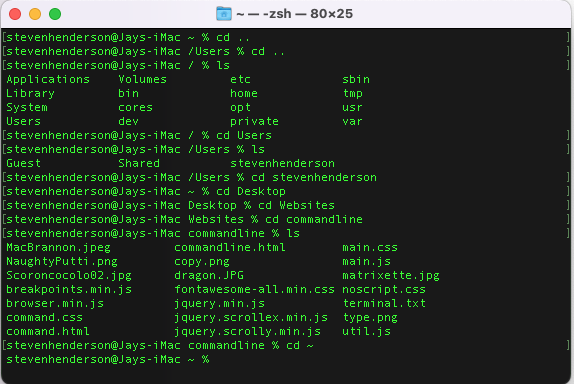
To quickly move to your Home Directory type cd and the symbol that is called tilde or cd ~
To move quickly to the root directory type cd /
cd .. to go to the parent of your current folder
cd ~ or just cd to jump back to your user’s home directory
cd / to go to the very top of your file system
cd ../.. to move up two levels
cd ../../.. to jump up three levels from your current location
- mkdir Data Makes a new, empty folder/directory named Data
- touch dog.txt Creates a new empty file named dog.txt
- pwd prints the path of the directory you are currently in
- ls lists all files in the current directory/folder
- ls -a list all files including hidden files
- ls -l long listing of all files showing owner, size and time last edited
- ls -R Recursive: Lists everything in the current folder and all subfolders
- ls .. list the contents of the parent directory one level above
- mv oldname.txt newname.txt renames files
- rm filename.txt (remove) permanetly deletes files (caution there be dragons) there is no cmd + Z or undo
- rm -r DeadFolder remove/delete a directory/folder and all of its contents (files and sub-directories) permenatly
- cat AnyFile.txt prints out the entire text of the file
- head AnyFile.txt prints the first 10 lines of specified file
- tail AnyFile.txt prints the last 10 lines of specified file
- echo "Arf! Arf!" > dog.txt replaces any existing text with Arf Arf
- echo "Arf! Arf! Arf!" >> dog.txt adds text below existing text on dog.txt
- cp copies files or folders from one location to another
- say "Everything not forbidden is compulsory" hear your machine speak to you
- say -f filename.txt Reads the contents of a specific text file aloud
- history lists a history of your last 16 (in ZSH/macOS) commands
- history 5 lists your last 5 commands (specify any number you want) and you can use your up arrow to bring them to the command prompt
- open -a "Sublime Text" dog.txt will open the file in Sublime Text (substitute your code editor) if it is installed on your machine
- Command + K Clears the console's screen
- Control + Z to pause a process and put it in the background; you can resume it later with the fg command
General Commands Manual (GCM)
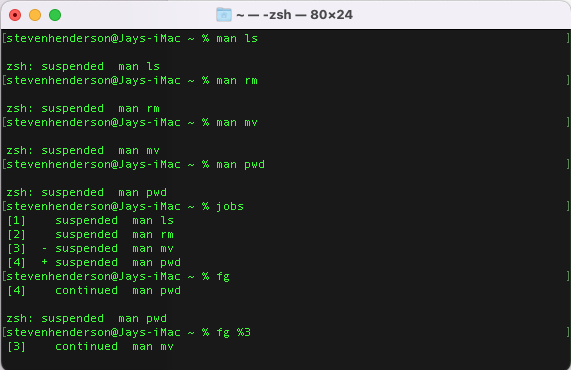
In the Terminal type man followed by a command to open the General Commands Manual (GCM) Man Page for that command
So if you wanted to know more about the ls command, you could run the command: man ls and the terminal will spit out everything you could ever want to know about the list command
On General Commands Manual (GCM) Man Pages you use the arrow keys to scroll up and down and the space bar to page down and press the letter "g" to go back to the beginning and shift/g (capitol G) to go to the end
You can search any Man Page by typing a forward slash (/) followed by your search term and hit Enter and the first instance of your term will be shown and highlighted so to see the next instance of your search term press the "n" key
When you are in a Man Page you can press the letter "h" (help) for learning about GCM Man Pages and then type "q" to go back to the Man Page you were on and then "q" again to get back to the Command Line
You can use man to pull up specs on any terminal command except what are called the built-in commands which are commands like cd or jobs or echo all of which have a single Man Page which you can get to by typing man builtins or man builtin and the Enter key
Once you've finished looking through the built-ins Man Page you can type the letter q to quit and go back to the Command Prompt
When you run a man ls or man rm or man (any other) command you'll find that you no longer have the old familiar blinking curser at the end of your prompt instead you'll see the highlighted word END in parenthesis followed by a blinking curser and way to exit the General Commands Manual is to type the letter "q" - no Enter/Return key required and that will take you back to the Command Line
You can also use control + z which will also take you back to the command prompt but that command only suspends the General Commands Manual (GCM) leaving it still running in the background and to go back to the GCM just type fg and BAM! You're back in the manual
Now try this: run the man on any command you want let's say you run man rm and then suspend out of it with control z and run another man command for instance man pwd and then control + z out of that one too
So now you are back to the familiar prompt and you can change directories, copy or delete or move around files working on the Command Line as you normal would but unseen on the console there are still those two processes running in the background
To see those running processes type jobs and hit Return/Enter and the output will be
- [1] - suspended man rm
- [2] + suspended man pwd
To to go to back to the GCM on pwd type fg %2 or run fg %1 to go back to the information on the remove command
If you type just fg with no percent flag the Terminal will output the manual on the last job on the list or the last job you called up on the jobs list
Mouse over the illustration above and you'll see I used the command fgand got output on the last job on the list which was pwd Print Working Directory command and after that I ran fg %3 and got the manual on the mv or move/rename files command
You can have as many instances of the GCM running in the backgorund as you want and this can be very handy when you want to check for instance which flag to use to see hidden files like .git and as the GCM will tell you you can find those hidden files by running li -a
In the illustration above you can see I have four GCM jobs running while I'm working on the command line so if I need to be reminded of which arguments (flags) are needed to output specific information I don't have to leave the Terminal and open up a browser and google around for half an hour when I can just run fg %4 and RTFM on the fourth command on the list
Here's a link to my Command Line page
Scoroncocolo
Thanks for the visit