The Fish Command Line Shell
Fish (Friendly Interactive Shell) is an excellent alternative to Bash and Zsh that offers syntax highlighting, command suggestions, tab completion and that makes working in the macOS Terminal easier. This tutorial explains how to install Fish and employ its most useful features.
In my last post I suggested that the Command Line or Terminal on your Mac or Windows machine should be treated like a video game and the Fish Shell is a game changer
It is sort of thrilling because it could be dangerous if you are not careful sort of like being a spy behind enemy lines or a tightrope/commandline walker high in the sky with no net beneath you
Have fun but be careful - There Be Dragons!
How Fish Differs from zsh and Bash
Fish Autosuggestion
Perhaps the biggest difference between Fish and it's two primary competitors Bash and zsh is that Fish features autosuggestion right out of the box while the other two Command Line Shells require plugins and/or configuration scripts to achieve this functionality
Once you start typing the fist letter of a command at the prompt Fish will attempt to complete the command for you and shade its guess at what you wanted in grey/teal letters and you can accept the suggestion by hitting your right arrow key or you can have Fish show all other suggestions (if there are any) by hitting your Tab key allowing you to highlight the choices thus presented with your arrow keys
And once you have decided on one of the choices highlight it and hit the Enter/Return key to choose it then hit Enter again to execute the command
Fish Syntax Highlighting
Another outstanding, game-changing difference between Fish and its competitors is that Fish features built-in syntax highlighting invalid commands or misspelled commands are highlighted in red while valid commands turn green, blue or a blue-ish teal color depending on your Fish set-up and are underlined
This underling of valid paths is a wonderful Fish-only feature
Web-Based Customization
Unlike any other Command Line Shell, Fish allows you to use web-based customization
Just run fish_config or fish_config browse and Fish will open up a page in your default browser that shows your current settings for Colors, Prompt, Functions, Variables, History and Bindings and you can change any of those settings right there on the web page
The web page allows you to see how it will look on your console before you make the changes
Command Line Based Customization
You can use fish_config command to customize your fish shell. To customize your prompt, you can use fish_config prompt show command to get all the prompts, and based on your choice, you can use fish_config prompt save to save the prompt. You can also choose and update themes with the theme sub-command. For example, to show all the themes, you can use fish_config theme list to see a long list of themes
Preview a specific theme run fish_config theme show theme-name
Apply and save a theme fish_config theme choose theme-name
Apply the chosen theme to all future sessions by following it with save: fish_config theme save
To see your current theme type fish_config theme show
Navigating in Fish
Fish features built-in keybindings to help you move back and forth through your directory history
You can move backward through directories/folders that you've cd to by holding down the opt/alt key and using your left arrow key and then hit enter when one shows up yo want to visit again
And you can move forward through the list using your right arrow key
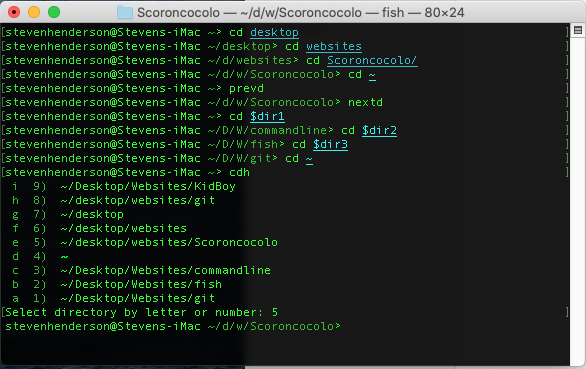
But one of the neatest ways to navigate in Fish is to use the command cdh to view a list of your cd history and then type a directory's corresponding number or letter and Bam! you're there!
You can also move backward by running the command prevd and forward by typing nextd
- prevd or (opt/alt+left arrow) - takes you to the previous directory
- nextd or (opt/alt+right arrow) - takes you to the next directory
- dirh (opt/alt+d) - shows a list of the recently visited directories
- cdh - allows you to quickly jump to any recently visited directory using letter or number shortcuts
How To Create Variables in Fish
Using Variables as Shortcuts to Folders
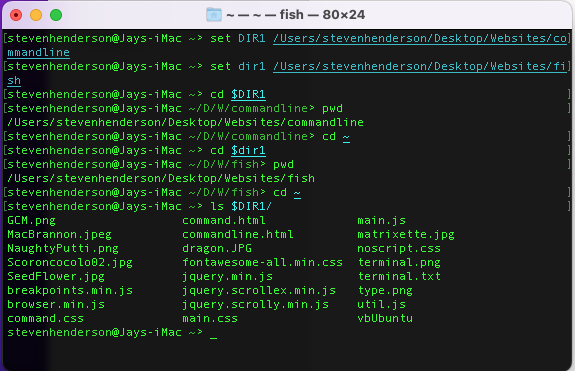
In both the Bash and zsh shell rather than having to enter a long path name to get to a directory/folder, you can set a variable to represent the path to that directory by running DIR1="/Users/stevenhenderson/Desktop/Websites/commandline" for instance so that in order to cd to that directory you simply have to type cd $DIR1 and BAM! you're there
You can do that in the Fish shell too but the syntax is a little different
In fish you would need to run: set DIR1 /Users/stevenhenderson/Desktop/Websites/commandline with no equal signs or parenthesis
So now if I wanted a list of all the files in that directory I could run ls $DIR1
You can define the path to yet another directory in Bash by running dir2="/Users/stevenhenderson/Desktop/Websites/fish"> and hit the Enter key or in Fish with set dir2 /Users/stevenhenderson/Desktop/Websites/fish and hit Enter/Return
Now no matter where you are in the Terminal you are you no longer need to use the complete path to cd into or work with files in those two directories/folders because the paths to those folders now have the shortcut/variable $DIR1 and $dir2 (just don't forget to use the dollar sign)
Varible Path in Bosh and zsh
- DIR1="/Users/stevenhenderson/Desktop/Websites/commandline"
- dir2="/Users/stevenhenderson/Desktop/Websites/fish"
Varible Path in Fish
- set DIR1 /Users/stevenhenderson/Desktop/Websites/commandline
- set dir1 /Users/stevenhenderson/Desktop/Websites/fish
This little variable trick works great in all three of the most common Command Line shells - Base zsh and Fish but it is only temporary and once you log out of the current session all three shells "forget" your handy path variables
To make these variables permanent in Bosh and zsh you would need to edit their config files which isn't all that scary of difficult but with Fish you don't have to dig into the guts of the shell
Make Fish Variables Permanent
Universal variables are unique to the fish shell. They are automatically saved and shared across all future shell sessions without you having to modify any configuration files
set -Ux VARIABLE_NAME value
-U makes the variable universal (persistent across reboots)
-x exports it as an environment variable to child processes
set -Ux DIR1 /Users/stevenhenderson/Desktop/Websites/commandline
set -Ux dir1 /Users/stevenhenderson/Desktop/Websites/fish
Fast Fish Facts
After installing fish your default shell will not be changed. To make Fish run type fish and to make fish your login shell after the installation, run: chsh -s /usr/local/bin/fish
To have the fish shell show a list of command flags (options/switches/modifiers), type a space then a dash (-) after any command like the ls (list command) for instance and press the Tab key
Highlight your choice using the arrows and press Enter to insert it or just type your Esc key to get back to the prompt
In fish shell, you can use fish -P or fish --private command to enter private mode. In private mode, your shell history will not be saved
Just type exit to move out of private mode
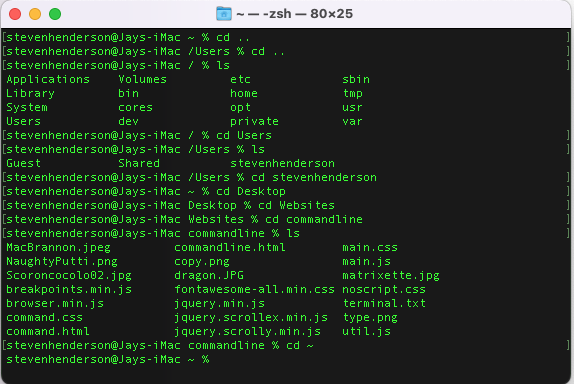
To quickly move to your Home Directory type cd and the symbol that is called tilde or cd ~
To move quickly to the root directory type cd /
cd .. to go to the parent of your current folder
cd ~ or just cd to jump back to your user’s home directory
cd / to go to the very top of your file system
cd ../.. to move up two levels
cd ../../.. to jump up three levels from your current location
- mkdir Data Makes a new, empty folder/directory named Data
- touch dog.txt Creates a new empty file named dog.txt
- pwd prints the path of the directory you are currently in
- ls lists all files in the current directory/folder
- ls -a list all files including hidden files
- ls -l long listing of all files showing owner, size and time last edited
- ls -R Recursive: Lists everything in the current folder and all subfolders
- ls .. list the contents of the parent directory one level above
- mv oldname.txt newname.txt renames files
- rm filename.txt (remove) permanently deletes files (caution there be dragons) there is no cmd + Z or undo
- rm -r DeadFolder remove/delete a directory/folder and all of its contents (files and sub-directories) permanently
- cat AnyFile.txt prints out the entire text of the file
- head AnyFile.txt prints the first 10 lines of specified file
- tail AnyFile.txt prints the last 10 lines of specified file
- echo "Arf! Arf!" > dog.txt replaces any existing text with Arf Arf
- echo "Arf! Arf! Arf!" >> dog.txt adds text below existing text on dog.txt
- cp copies files or folders from one location to another
- say "Everything not forbidden is compulsory" hear your machine speak to you
- say -f filename.txt Reads the contents of a specific text file aloud
- history lists a history of your last 16 (in ZSH/macOS) commands
- history 5 lists your last 5 commands (specify any number you want) and you can use your up arrow to bring them to the command prompt
- open -a "Sublime Text" dog.txt will open the file in Sublime Text (substitute your code editor) if it is installed on your machine
- Command + K Clears the console's screen
- Control + Z to pause a process and put it in the background; you can resume it later with the fg command

Command Line Cheat Sheet
General Commands Manual (GCM)
RTFM
In the Terminal type man followed by a command to open the General Commands Manual (GCM) Man Page for that command
So if you wanted to know more about the ls command, you could run the command: man ls and the terminal will spit out everything you could ever want to know about the list command
On General Commands Manual (GCM) Man Pages you use the arrow keys to scroll up and down and the space bar to page down and press the letter "g" to go back to the beginning and shift/g (capitol G) to go to the end
You can search any Man Page by typing a forward slash (/) followed by your search term and hit Enter and the first instance of your term will be shown and highlighted so to see the next instance of your search term press the "n" key
When you are in a Man Page you can press the letter "h" (help) for learning about GCM Man Pages and then type "q" to go back to the Man Page you were on and then "q" again to get back to the Command Line
You can use man to pull up specs on any terminal command except what are called the built-in commands which are commands like cd or jobs or echo all of which have a single Man Page which you can get to by typing man builtins or man builtin and the Enter key
Once you've finished looking through the built-ins Man Page you can type the letter q to quit and go back to the Command Prompt
When you run a man ls or man rm or man (any other) command you'll find that you no longer have the old familiar blinking curser at the end of your prompt instead you'll see the highlighted word END in parenthesis followed by a blinking curser and way to exit the General Commands Manual is to type the letter "q" - no Enter/Return key required and that will take you back to the Command Line
You can also use control + z which will also take you back to the command prompt but that command only suspends the General Commands Manual (GCM) leaving it still running in the background and to go back to the GCM just type fg and BAM! You're back in the manual
Now try this: run the man on any command you want let's say you run man rm and then suspend out of it with control z and run another man command for instance man pwd and then control + z out of that one too
So now you are back to the familiar prompt and you can change directories, copy or delete or move around files working on the Command Line as you normal would but unseen on the console there are still those two processes running in the background
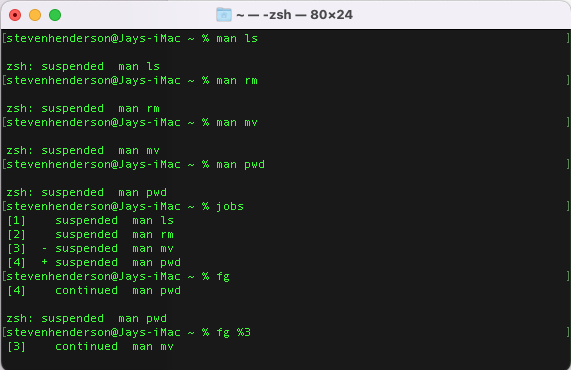
To see those running processes type jobs and hit Return/Enter and the output will be
- [1] - suspended man rm
- [2] + suspended man pwd
To to go to back to the GCM on pwd type fg %2 or run fg %1 to go back to the information on the remove command
If you type just fg with no percent flag the Terminal will output the manual on the last job on the list or the last job you called up on the jobs list
Mouse over the illustration above and you'll see I used the command fgand got output on the last job on the list which was pwd Print Working Directory command and after that I ran fg %3 and got the manual on the mv or move/rename files command
You can have as many instances of the GCM running in the background as you want and this can be very handy when you want to check for instance which flag to use to see hidden files like .git and as the GCM will tell you you can find those hidden files by running li -a
In the illustration above you can see I have four GCM jobs running while I'm working on the command line so if I need to be reminded of which arguments (flags) are needed to output specific information I don't have to leave the Terminal and open up a browser and google around for half an hour when I can just run fg %4 and RTFM on the fourth command on the list
This article is part of the Scoroncocolo macOS Terminal Tutorial Series