Vim is a free command line text editor that is pre-installed on every Mac
and primarily used to create and edit configuration files
How do I open Vim
To open Vim just open your Mac terminal app and type: vim and press Enter/Return
How do I exit out of Vim?
To exit Vim and return to your command prompt type the esc key followed by :q and your Enter key
:q
"We’re here on Earth to fart around... we’re dancing animals" - Kurt Vonnegut
How to Open Vim in the Terminal on Your Mac
Vim is a terminal-based text editor used for configuration files, code, notes, and other plain-text files.
Vim is a very popular command line text editor because it can be used with only your keyboard entirely without menus or a mouse
If your machine doesn't have Vim already installed here is the Vim Webpage where you can download a copy of Vim
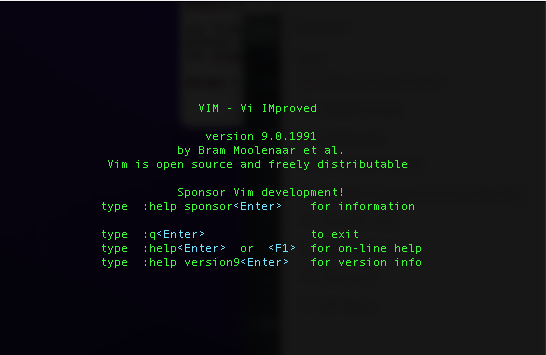
If you are on a Mac you probably have Vim pre-installed so just open your Terminal and type vim and you will be presented this welcome page
Look closely and you will see instructions on how to exit this welcome page and go back to the command prompt
vim
Just type a colon then the letter q as in :q and hit your Enter key and you can also use :quit plus Enter/Return key
If you try to enter some text you'll find you can't and the reason is because you are in Command Mode and text can only be entered in Insert Mode
So follow me like a panther and I'll explain how you can quickly start editing text in Vim
How to Exit Vim
To Exit Vim if no changes were made: Press Esc then type :q and press Enter
To Exit Vim without saving any changes you may have made: Press Esc then type :q! and press Enter
To exit and save the changes you made press Esc then type :wq and press Enter. esc :wq enter
Pressing the esc key insures you are in the Command also known as Normal mode in Vim
When you type a colon (:) in Command Mode you will see a colon appear at the very bottom left corner of your terminal screen waiting for you to type a command
Type your choice of commands (either q!, wq, w, or q) in lowercase
Press the Enter key to execute the command and return to your command prompt in the Terminal or back to the file you were editing in Vim depending on which command you entered
:q Exit Vim if nothing was written and no editing was done
:q! Exit Vim without saving anything
:wq Exit and save your work and edits
:w Saves your work and does not exit Vim
:wq file.js Exit Vim and creates a file named file.js in which your work will be saved
:qa Close all buffers/windows and exit Vim
How to Use the Two Basic Vim Modes
Vim is a modal editor and has many modes but there are only two you need to learn to use to be a Vim Wizard - Command Mode aka Normal Mode and Insert Mode
Command/Normal Mode
You can open any file this in your current directory in the terminal just by typing vim and then that files name
When you open your Terminal and run
vim filename.js
to edit that file, Vim starts out in command mode. This means that all the keys are used for commands, rather than typing text. Typing j won’t insert the character “j”–it will move the cursor down one line. Typing dd will delete an entire line, rather than inserting “dd.”
You can always use you arrow keys to move around in Command Mode using the letters on the keyboard is a cooler way to do it
h moves the cursor one character to the left
j moves the cursor down one line
k moves the cursor up one line
l moves the cursor one character to the right
0 moves the cursor to the beginning of the line
$ moves the cursor to the end of the line
w move forward one word
b move backward one word
G move to the end of the file
gg move to the beginning of the file
x Deletes the single character under the cursor
dd Deletes (cuts) the entire current line
yy Copies (yanks) the current line
p Pastes the copied/cut text below the cursor
u Undoes the last action
Ctrl + r Redoes the undone action
You can always return to Command/normal mode by hitting your esc key
Using Vim Insert Mode
Insert Mode
To enter Insert Mode you simply type the letter i and you will see the word INSERT at the bottom-left of the Vim window
To begin editing text, move the cursor under the character BEFORE which the text is to be inserted and press i
You can type the letter o instead of i and Vim will start a new line below the cursor while putting you i Insert Mode
Once you are in Insert mode you can start typing away and Vim behaves pretty much like any other text editor you may be used to
You can use your delete key to delete text and you can paste from your clipboard you can highlight and copy the text you are creating in the Vim window as long as you do everything with your keyboard because using your mouse is not allowed in Vim (Actually that's a lie- You can in fact use your mouse but using just your keyboard is so much more fun)
You can go straight into Insert Mode from the Vim welcome screen just by hitting your i key which is the fastest way to create a file using Vim
Lets try an example: In your Terminal type vim and hit Enter and Bam! There's the welcome page opened in Command Mode because Vim always opens in Command/Normal Mode so hit your i key and now you are in Insert Mode so type some text
If you recall in the first part of this page we talked about how to exit Vim so hit your esc key to go back to Command Mode and type a colon : and then q for quit or :q! to quit without saving changes you may have made
Write means save in Vim-speak so to save/write and exit is :wq but if you use that command in this instance Vim will output: No file name which is Vim-speak for "where the hell am I supposed to put this!" So type this wq somefile.txt substitute somefile for a file name of your choosing
Always remember that if you aren't interested in saving any edits you may have made you can use the command :q! and Bam! you're back at the Terminal command prompt
Additional Vim Commands
Press the esc key to ensure you are in the Command/Normal mode to execute these commands
:w Saves changes to the current file without leaving Vim
:set nu Turns on visible line numbering on the left sidebar
:set nonu Hides line numbering
Vim Buffers/Windows
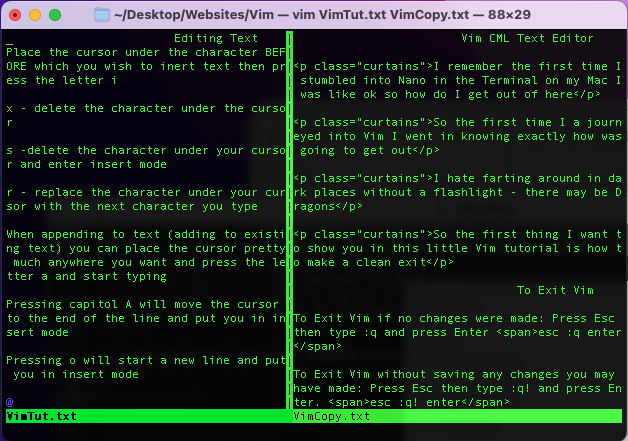
Type this in your terminal vim -O somefile.txt anotherfile.txt and hit Enter and BAM! two side by side vertical files
vim -O somefile.txt anotherfile.txt
So now that you have two open files you need to close first one with :q and then the other with :q
Or you can close both at once by using the command :qa
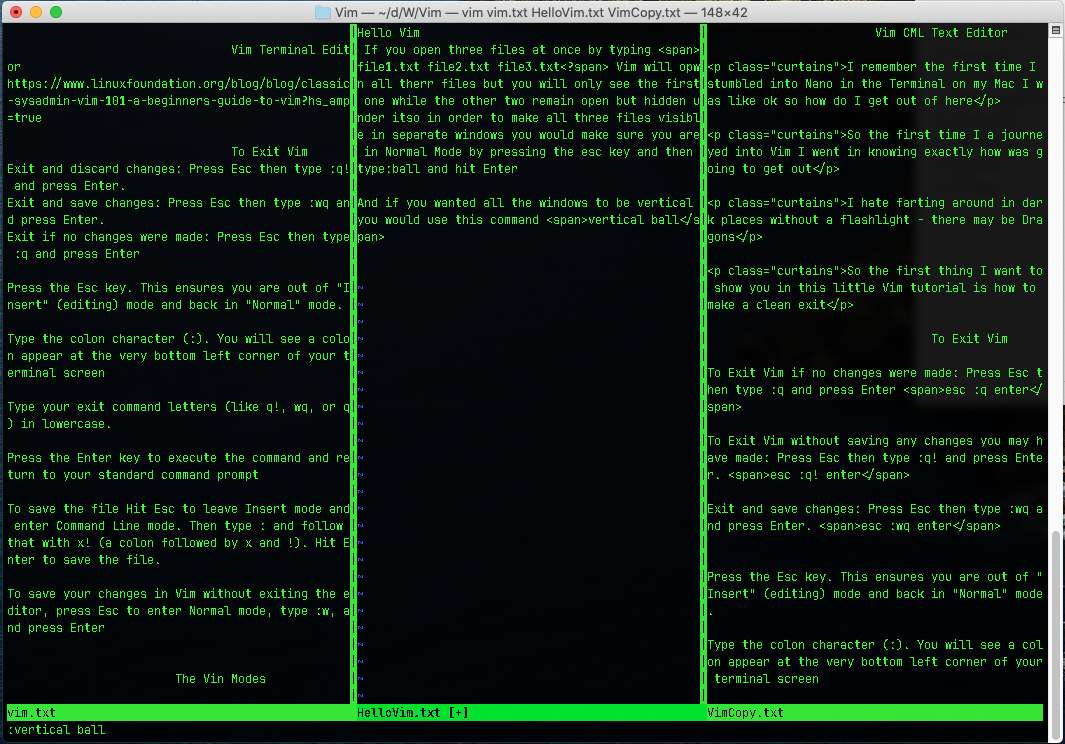
Try this - open a single file in Vim in your Terminal by running vim file1 and then type the following :split file2 and then :vsplit file3
To get back to your Terminal command prompt just type :qa
Remember to hit your Enter key after every command you type into Vim
Vim Help
I highly recommend you read through Vim' own vimtutor which is a 20 to 30 minute Vim tutorial that you can read and interact with on the Vim editor itself and you can get to it just by running this in the terminal
vimtutor
Type :h save then press your tab key over and over again to see the different Vim commands that that correspond with write or try :h split then Tab key
To get out of the help mode window in Vim, make sure you are in Normal Mode by pressing the Esc key, then type :q (or :quit) and press Enter. This will close the help window split and return you right back to your file
to suspend Vim and get quickly to the command prompt type Ctrl-z. To return to the suspended Vim, run fg from the terminal.